2011年6月22日 星期三

[Resource] Web Standards Update for Microsoft Visual Studio 2010 SP1

以下是Web Standards Update for Microsoft Visual Studio 2010 SP1在官網相關的敘述,有興趣的朋友可以先參考:Web Standards Update provides the much wanted HTML5 & CSS3 support to Visual Studio 2010 SP1. It brings VS 2010 intellisense & validation as close to W3C specification as we could get via means of an extension. The most notable supported features by this extension are:

image_axdHTML5 – Video, Audio, Input Type, Drag & Drop, WAI-ARIA, Microdata, Schema.org

  • Browser API – GeoLocation & Local Storage
  • CSS3 – 2D Transforms, 3D Transforms, Animations, Background & Borders, Basic Box Model, Basic UI, Behavior, Color, Flexible Box Layout, Fonts, Paged Media, Hyperlink Presentation, Line, Lists, Marquee, Media Queries, Multi Column, Namespaces, Presentation Levels, Ruby, Selectors, Speech, Syntax, Template Layout, Text & Transitions. It also supports vendor specific prefixes like –ms, -webkit & -moz.

download

其他更詳細的一些說明,也可以參考保哥Will整理的資訊和內容:介紹好用 Visual Studio 2010 擴充套件:Web Standards Update for Microsoft Visual Studio 2010 SP1

2011年6月20日 星期一

SharePoint 2010 Reusable User Control Template Property in WebPart (在SharePoint 2010中使用WebPart存取共用的UserControl屬性)

Situation(情境) : 將共用的使用者控制項(UserControl)部署至SharePoint 2010 網站中,並開放一些對外的屬性,然而在其它的WebPart想要直接存取這些共用UserControl之屬性,該怎麼做呢?

上述問題是客戶在開發SharePoint 2010 時遇到的相關問題,因為SharePoint 2010 針對User Control 有提供預設的開發模型,因此Microsoft建議大家在開發的時候盡量使用Web User Control,因而延伸一些針對User Control 需要注意的開發技巧,以下亞當斯帶各位來實作以上問題的解決方案。

Solution(解決方案):

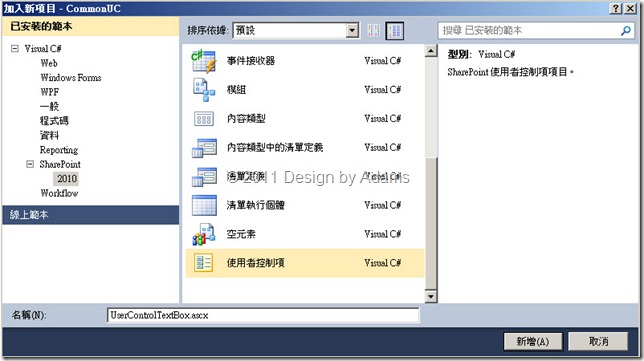
  1. 新增一個SharePoint 2010 專案用來存放共用的User Control,部署方式為Solution
    CommonUC-1
  2. 新增一個共用的Web User Control ,例如命名為:UserControlTextBox
    CommonUC-2
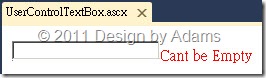
  3. 設計此User Control 的畫面,並針對此User Control 設計對外開放的屬性,以便其它物件存取其值
    CommonUC-4
    public string UCText
    {
      get
      {
        return TextBox1.Text;
      }
    }
  4. 將此User Control先行部署至SharePoint 2010 網站上,其部署位置將預設為:{SharePointRoot}\Template\ControlTemplates\CommonUC\
  5. 新增另一個WebPart專案,命名為:WebPartProject,並新增一個Visual WebPart (UCVisualWebPartUserControl.ascx) ,為了要存取已經部署到SharePoint 2010 網站上的User Control,要先註冊User Control,如下:
    CommonUC-5
  6. Src挑選來源的時候,可以透過選取視窗,例如直接挑選伺服器上的UserControlTextBox
    CommonUC-6
  7. 在WebPart專案加入參考
    CommonUC-7
  8. 選取同一方案中的CommonUC.dll (共用User Control所在的SharePoint 2010 專案範本)
    CommonUC-8
  9. 在WebPart中先將控制項設計好,如下:
  10. <%@ Register TagPrefix="NETDB" TagName="UserControlTextBox" Src="~/_controltemplates/CommonUC/UserControlTextBox.ascx"  %>

    <NETDB:UserControlTextBox ID="UCT" runat="server" />
    <asp:Button ID="Button1" runat="server" Text="Get UC Text" onclick="Button1_Click" />
    <asp:Label ID="Label1" runat="server" Text="Label"></asp:Label>

  11. 雙擊按鈕,切換到程式碼視窗,將UCT直接轉型為共用的User Control並存取其開放的屬性:UCText即可
    CommonUC-9
  12. 將WebPart部署到SharePoint 2010 網站上
    CommonUC-10
  13. 在SharePoint 2010 網頁中加入WebPart測試,按下按鈕透過UCText屬性存取到共用User Control的TextBox1控制項值。
    CommonUC-11

2011年6月15日 星期三

How to Hide the Dialog Ribbon in SharePoint 2010 (將SharePoint 2010Dialog視窗中的Ribbon隱藏起來)

基本上,SharePoint 2010網站中的頁面(Home.aspx or Default.aspx…等等)以及頁面中操作時所彈跳出的Dialog視窗所套用的master都是一樣的,也就是:v4.master,而在v4.master中用來控管Ribbon區塊的是一個div區段:
<div id="s4-ribbonrow" class="s4-pr s4-ribbonrowhidetitle">
… …

網站預設的Dialog視窗是有Ribbon,如下圖所示:
image

因此,若是想要在整個SharePoint 2010網站中將所有的Dialog視窗中之Ribbon隱藏起來,那麼只要開啟v4.master找到以下div並設定css時加上一個s4-notdlg:即可。

<div id="s4-ribbonrow" class="s4-notdlg s4-pr s4-ribbonrowhidetitle">

修改完之後執行的結果如下:
image

2011年6月14日 星期二

Office 365 Developer Resource (Office 365 開發參考資源)

最近微軟推出Office 365可以讓企業花費少許的費用,就可以將企業內部組織以及相關資料整合到雲端上,不過光是設定完成之後,基本的功能,對於那些可能需要客製化相關功能的客戶,還少了那麼一點點東西。

因此假設需要開發Office 365上的一些功能的話,以下亞當斯整理一些開發相關的資源以及參考:

  • Office 365 Developer Training Kit
    Guidance that provides developers with advanced guidance on how to develop for Office 365 including SharePoint Online, Exchange Online and Lync Online
  • Visual Studio 2010 SharePoint Power Tools
    The Visual Studio 2010 SharePoint Power Tools is a set of templates and extensions that provides additional functionality to SharePoint developers who use the SharePoint developer tools in Visual Studio 2010.  Below is the list of features included in the current release of the power tools
  • SharePoint Online Developer Resource Center
    Find articles, videos, and training for the developer features available in SharePoint Online
  • SharePoint Online for Office 365: Developer Guide
    Use the SharePoint Online for Office 365 Developer Guide to gain knowledge and understanding of SharePoint Online within Microsoft Office 365, and the rich features available to developers and designers

另外關於SharePoint Online的開發相關參考資源比較常用到的還有以下這些資訊:

SharePoint Online: An Overview for Developers

Learn about the developer features that are coming to SharePoint Online, strategies and patterns for successfully developing on SharePoint Online, and links to additional resources for developers to deepen their knowledge of these extensibility features.

Cloud-Based Collaboration with SharePoint Online

Learn how SharePoint Online development is similar to and different from SharePoint 2010 development by following along with Chris Mayo as he builds solutions that run in the cloud.

Remote Authentication in SharePoint Online Using Claims Based Authentication

Use this article and code sample to learn how to authenticate against SharePoint Online in client applications using the SharePoint client-side object models.

SharePoint Online Developer Guide

Download this white paper to gain knowledge and understanding of SharePoint Online within Microsoft Office 365, and the rich features available to developers and designers. Or read the online version.

Office 365 Developer Training Kit

Use this online or downloadable training course to help you get started building cloud-based communication and collaboration solutions for Office 365, including SharePoint Online. Includes 7 modules, with over 10 hours of video and 17 hands-on-labs.

SharePoint 2010 SDK

Read the SharePoint 2010 SDK online or download the SDK documentation and code samples.
2011年6月1日 星期三

How to use SharePoint 2010 PeopleEditor [People Picker] in WebPart (如何在WebPart中使用SharePoint 2010的PeopleEditor控制項來取得使用者資料)

在SharePoint 2010 中或是要取得使用者資料,最好用的方式就是使用預設的People Picker控制項來挑選使用者,而ㄧ般來說People Picker是搭配People Editor 一起使用的,先來看看People Editor和People Picker:

People Editor:由一個TextBox加上兩個Button組成,一個Button用來檢核使用者名稱是否正確,一個用來叫用
People Picker控制項PeoplePicker-1

People Picker:當點選了People Editor右下角的圖示,則會彈跳出People Picker控制項以方便挑選使用者
PeoplePicker-2

那麼該如何在自行開發的WebPart上使用這兩個既有的控制項,以下亞當斯就帶各位來實作其設計步驟:

  1. 先建立一個Visual WebPart專案命名為:PPWebPartProject,並加入一個Visual WebPart命名為 : UsePeopleEditor
  2. 在UsePeopleEditor.ascx中先加入Microsoft.SharePoint.WebControls的宣告指示詞,如下所示:
    <%@ Register Tagprefix="msw" Namespace="Microsoft.SharePoint.WebControls" Assembly="Microsoft.SharePoint, Version=12.0.0.0, Culture=neutral, PublicKeyToken=71e9bce111e9429c" %>
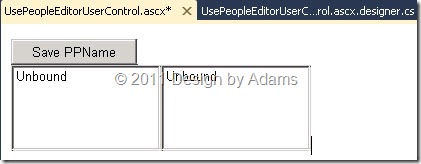
  3. 接著加入PeopleEditor 控制項以及相關ASP.NET控制項
  4. <msw:PeopleEditor AllowEmpty="false" ValidatorEnabled="true"
         id="userPicker" runat="server" ShowCreateButtonInActiveDirectoryAccountCreationMode="true"
         SelectionSet="User" />
    <asp:Button ID="Button1" runat="server" Text="Save PPName" />
    <br />
    <asp:ListBox ID="ListBox1" runat="server" Rows="5" Width="150px"></asp:ListBox>
    <asp:ListBox ID="ListBox2" runat="server" Rows="5" Width="150px"></asp:ListBox>
    PeoplePicker-3

  5. 在UsePeopleEditorUserControl.ascx.designer.cs中確定已加入PeopleEditor 控制項的宣告
    PeoplePicker-4
  6. 回到畫面,按下按鈕觸發Click事件,並加入擷取使用者資料的程式碼,程式碼如下:
    PeoplePicker-5
  7. 這邊分別取Description和DisplayText屬性,主要是因為這兩個屬性取出來的資料是不同的,例如
    Description取出來的值為:Domain\adams , 而DisplayText取出來的值為:Adams Chao
  8. 將WebPart部署到SPS網站上執行測試,先使用PeopleEditor 挑選使用者PeoplePicker-6
  9. 接著按下Save PPName按鈕將資料丟入ListBox中呈現
    PeoplePicker-8

以上幾個步驟就可以輕易的在你的WebPart中或是自訂的Page中使用People Editor 控制項,並運用既有的機制擷取使用者的帳號資料。