2012年3月13日 星期二

How To Use SharePoint Dispose Checker Tool (如何使用SPDisposeCheck工具檢測SharePoint 2010)

微軟官方提供的 SharePoint 程式撰寫規範,可參考如下網址之內容:

http://blogs.msdn.com/b/rogerla/archive/2008/02/12/sharepoint-2007-and-wss-3-0-dispose-patterns-by-example.aspx#SPDisposeCheckID_210

另外,在開發SharePoint API時也可以使用以下工具來檢測,撰寫的程式是否有問題,規則或用法是否有誤…等等,這個好用的工作叫做:SharePoint Dispose Checker Tool,以下是下載的網址:

SharePoint Dispose Checker Tool

http://archive.msdn.microsoft.com/SPDisposeCheck

1. 當下在完成,開始執行安裝,會有一個畫面可以選擇安裝的功能,一個是當作VS2010的增益集工具,另一個是自動在專案建置後,順便執行程式碼檢核,如下圖所示:

image

2. 安裝完成之後,開啟VS2010可以看到已經安裝完成的工具:SPDisposeCheck,先設定VS2010中的SPDisposeCheck

image

3. 新增一個SharePoint WebPart專案,在WebPart中撰寫叫用Server API 物件程式

image

4. 使用SharePoint.dll呼叫Server API 物件來進行程式碼檢測,以下我們來檢測兩段簡易的SPWeb物件程式碼,首先第一段是正確的寫法:

image

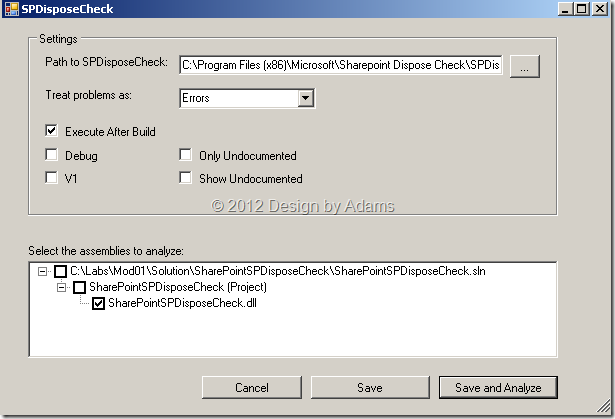
5. 開啟VS2010中的SPDisposeCheck,設定相關選項後,按下Save and Analyze:
image

因為這段程式碼是遵守規範的,所以並沒有錯誤訊息警示:

image

6. 第二段程式是不正確的寫法,當建置後SPDisposeCheck會檢測到這段程式不符合程式撰寫規範,因此會出現提示的警示訊息,如下圖所示:

image

當SPDisposeCheck進行程式碼檢測時,會發現以下錯誤訊息:

SPDisposeCheckID_645: Dispose should not be called on this object.
Initial Assignment: site := Microsoft.SharePoint.SPContext.get_Current().{Microsoft.SharePoint.SPContext}get_Site() For more information, visit
http://blogs.msdn.com/rogerla/archive/2008/02/12/sharepoint-2007-and-wss-3-0-dispose-patterns-by-example.aspx#SPDisposeCheckID_645        0    1    SharePointSPDisposeCheck

image

因此,若是開發SharePoint 應用程式,亞當斯建議可以使用這個不錯用的程式碼檢測小工具來偵測您的寫法是否有遵守微軟建議的開發規範,以避免不必要的錯誤發生。

2011年11月13日 星期日

Enabled SharePoint 2010 Session(啟用SharePoint 2010的Session機制)

預設SharePoint 2010 並沒有啟用Session機制,因此如果客製化的User Control或是ApplicationPage有用到Session的話,那麼必須要啟用SharePoint 2010中的Session機制,而啟用的方式就是修改web.config中的相關設定。

總共有兩個設定要修改:

  1. 將<system.web>下的pages項目中的enableSessionState屬性設定為:trueimage
  2. 修改<system.webServer>下modules項目,將<remove name="Session" />註解掉即可image

2011年11月1日 星期二

SharePoint 2010 Common site collection templates (SharePoint 2010 網站樣板代號對應表)

SharePoint 2010上面有很多的網站範本,讓管理者可以建置各種不同類型的網站,如果要透過程式碼API或是Windows PowerShell 來安装或建立網站的話,就必須知道網站的範本代號為何。

以下亞當斯整理一下來自MSDN上的Common site collection templates,網站樣板代碼表如下:

Parameter value

Description

描述

GLOBAL#0

Global template

全域範本

STS#0

Team Site

工作組網站

STS#1

Blank Site

空白網站

STS#2

Document Workspace

文件工作區

MPS#0

Basic Meeting Workspace

基本會議工作區

MPS#1

Blank Meeting Workspace

空白會議工作區

MPS#2

Decision Meeting Workspace

決議會議工作區

MPS#3

Social Meeting Workspace

社交會議工作區

MPS#4

Multipage Meeting Workspace

多頁會議工作區

CENTRALADMIN#0

Central Admin Site

管理中心網站

WIKI#0

Wiki Site

Wiki 網站

BLOG#0

Blog

部落格

SGS#0

Group Work Site

群組工作網站

TENANTADMIN#0

Tenant Admin Site

租戶管理網站

ACCSRV#0

Access Services Site

Access Services 網站

ACCSRV#1

Assets Web Database

資產 Web 資料庫

ACCSRV#3

Charitable Contributions Web Database

慈善捐款 Web 資料庫

ACCSRV#4

Contacts Web Database

連絡人 Web 資料庫

ACCSRV#6

Issues Web Database

問題 Web 資料庫

ACCSRV#5

Projects Web Database

專案 Web 資料庫

BDR#0

Document Center

文件中心

OFFILE#0

(obsolete) Records Center

(已過時)記錄中心

OFFILE#1

Records Center

記錄中心

OSRV#0

Shared Services Administration Site

共用服務管理網站

PPSMASite#0

PerformancePoint

PerformancePoint

BICenterSite#0

Business Intelligence Center

商業智慧中心

PWA#0

Project Web App Site

Project Web App 網站

PWS#0

Microsoft Project Site

Microsoft Project 網站

SPS#0

SharePoint Portal Server Site

SharePoint Portal Server 網站

SPSPERS#0

SharePoint Portal Server Personal Space

SharePoint Portal Server 個人網站

SPSMSITE#0

Personalization Site

個人化網站

SPSTOC#0

Contents area Template

內容區域範本

SPSTOPIC#0

Topic area template

主題區域範本

SPSNEWS#0

News Site

新聞網站

CMSPUBLISHING#0

Publishing Site

發佈網站

BLANKINTERNET#0

Publishing Site

發佈網站

BLANKINTERNET#1

Press Releases Site

新聞發佈網站

BLANKINTERNET#2

Publishing Site with Workflow

使用工作流發佈網站

SPSNHOME#0

News Site

新聞網站

SPSSITES#0

Site Directory

網站目錄

SPSCOMMU#0

Community area template

社區區域範本

SPSREPORTCENTER#0

Report Center

報告中心

SPSPORTAL#0

Collaboration Portal

協作門戶

SRCHCEN#0

Enterprise Search Center

企業級搜索中心

PROFILES#0

Profiles

設定檔

BLANKINTERNETCONT

Publishing Portal

發佈門戶

SPSMSITEHOST#0

My Site Host

“我的網站” HOST

ENTERWIKI#0

Enterprise Wiki

企業 Wiki

SRCHCENTERLITE#0

Basic Search Center

基本搜索中心

SRCHCENTERLITE#1

Basic Search Center

基本搜索中心

SRCHCENTERFAST#0

FAST Search Center

快速搜索中心

visprus#0

Visio Process Repository

Visio 流程儲存庫


以下是Windows PowerShell 透過網站範本建立網站的指令:

Set-ExecutionPolicy unrestricted -Force # answer Y
Add-PSSnapin Microsoft.SharePoint.Powershell
$SiteCollectionName = "Welcome to My Publishing Site"
$SiteCollectionURL = "http://www.contoso.com/sps/"
$ContentDatabase  = "SP2010_ContentDB_Frontend"
$SiteCollectionTemplate = "BLANKINTERNET#1"
$SiteCollectionLanguage = 1033
$SiteCollectionDescription = "Publishing site"
$OwnerAlias = "DOMAIN\admin"
$OwnerEmail = "admin@contoso.com"
$SecondaryOwnerAlias = "DOMAIN\admin2"
$SecondaryEmail = "admin2@contoso.com"
# Create a new Sharepoint Site Collection
New-SPSite -Name $SiteCollectionName -URL $SiteCollectionURL -ContentDatabase $ContentDatabase Template $SiteCollectionTemplate -Language $SiteCollectionLanguage -Description $SiteCollectionDescription -OwnerAlias $OwnerAlias -OwnerEmail $OwnerEmail -SecondaryOwnerAlias $SecondaryOwnerAlias -SecondaryEmail $SecondaryEmail

2011年10月8日 星期六

開發Office 365 SharePoint Online–Step1

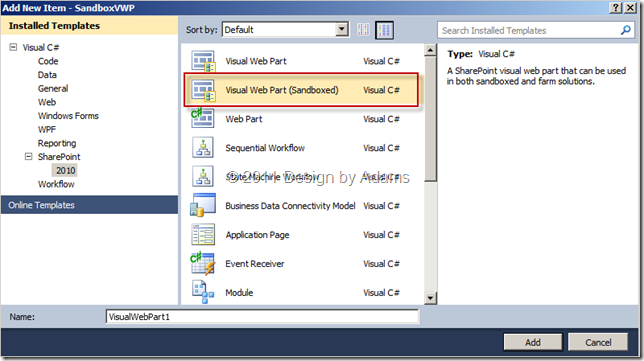
要開發Office 365 SharePoint Online 必須要先裝Visual Studio 2010 SharePoint Power Tools,下載的網址如下:http://visualstudiogallery.msdn.microsoft.com/8e602a8c-6714-4549-9e95-f3700344b0d9/,安裝完成之後,會在Visual Studio 2010的SharePoint樣板項目中,多了 一個:Visual Web Part (SandBoxed),因為預設的SharePoint Visual Web Part 專案,是沒有部署到SandBoxed這個選項可以選的,因此必須先建立一個空專案,然後再加入Visual Web Part (SandBoxed),如下圖 所示:

image

新增的Visual Web Part (SandBoxed)內容和一般的Visual Web Part 不大一樣,Visual Web Part (SandBoxed)是由一個ascx+ascx.cs以及ascx.g.cs組成

image

裡面最大不同的檔案是 : ascx.g.cs,因為預設的Visual Web Part 是將UserControl放到指定的外部資料夾中,但是SandBoxed不允許存取外部資源,因此Visual Web Part (SandBoxed)的UserControl就由ascx.g.cs中的程式來描敘控制項內容,以下為ascx.g.cs程式碼:

image

這樣一來,就可以使用SandBoxed方式將UserControl直接部署在Office 365 SharePoint網站上

2011年9月24日 星期六

Silverlight 4 Application Themes

Silverlight 4 Application Themes真是好東西,可以快速地建置起統一樣式、美美的Silverlight 系統,老實說接專案開發系統時,發現USER很重視系統的UI,所以亞當斯才說這是好東西啊,以下是官方的說明:

4 new application themes for Silverlight 4: JetPack, Accent Color, Windows 7 and Cosmopolitan. These themes can be used for the navigation template provided by the Silverlight 4 Tools installer or using the various resource dictionaries provided in this download.

下載網址在:http://www.microsoft.com/download/en/details.aspx?id=14590