顯示具有 MOSS篇 標籤的文章。 顯示所有文章

2013年8月1日 星期四

How to custom BCS Update method in SharePoint 2010(如何在SharePoint 2010中開發客製化BCS中的Update方法)

這篇主要介紹的是sharepoint 2010中使用Visual Studio 開發 BCS的BDC Model 時,假設我們想要自訂的BDC Model擁有Update的功能開怎麼做?

假設我們已經使用Visual Studio 2010開發好一個BDC Model,叫做:TrainingEntity,此TrainingEntity使用SupplierID當作Identifier,並且已經事先定義好ReadList以及ReadItem,如下圖所示:

DBC Entity

因此,我們可以透過BDC Mothod Details視窗來設定Update方法中的相關物件,當新增Update方法後,會自動帶入TrainingEntity當作參數來更新後端的資料來源,且此參數為In,如下圖所示:
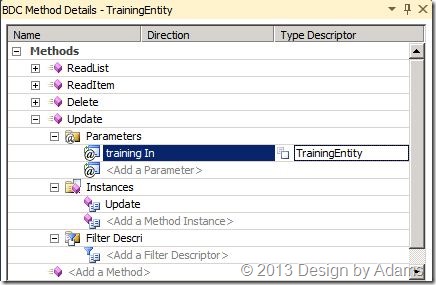
BDC Detail Update

選取TrainingEntity且按下編輯之後,可以帶出此TrainingEntity已經設定好的Type Descriptor,目前可透過下圖得知我們所定義的Type Descriptor以SupplierID當作Identifier,其餘的Type Descriptor都是在Update方法中要可以透過SharePoint 的UI操作異動更新的:

Update Type

因此,我們主要針對SupplierID做設定,這邊要特別注意一點,因為TrainingEntity是參數,帶入方法中要可以更新,因此TrainingEntity中的Type Descriptor必須是readonly為false。不過Visual Studio是很貼心的,當你使用工具產生Update方法時,所有的Type Descriptor預設readonly為false,因此不用特別設定! 但因為SupplierID是Identifier,在更新的畫面中我們希望此Type Descriptor不能被異動,因此必須要設定:Pre-Updater Field 為True

PreUpdate

假設Pre-Updater Field 沒有設定,則會出現以下的錯誤訊息:

Error : Failed to update a list item for this external list based on the Entity (External Content Type) 'TrainingEntity' in EntityNamespace 'Lab06.TrainingBdcModel'. Details: The Field named 'SupplierID' contains an Identifier which is not read only. The Update operation requires a corresponding PreUpdaterField for this Field on Method with Name 'Update' on Entity (External Content Type) with Name 'TrainingEntity' in Namespace 'Lab06.TrainingBdcModel'.

DBC Update Error

當設定好Update相關的Type Descriptor後,接著我們就可以實作實際要更新回後端資料來源的程式碼了,這邊我使用ADO.NET物件來更新回SQL資料庫,語法如下:
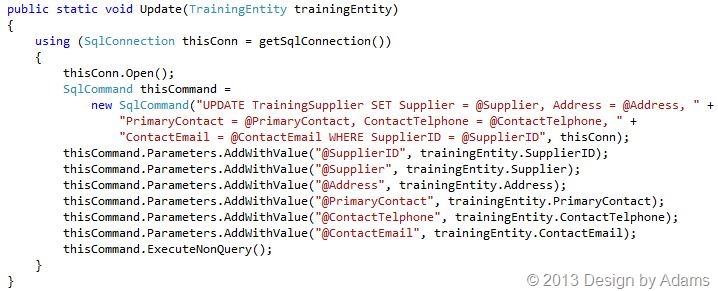
DBC Update Code

開發完畢,直接部署至SharePoint 2010 Server上,搞定!

接著我們來測試一下External List 上更新資料,首先瀏覽已經設定好的External List ,可以從資料庫正常抓取資料呈現:

List View

接著選取其中一筆項目,進入編輯頁面,並且按下Save更新完成!

List Update

2012年11月17日 星期六

SharePoint 2013 Project Templates for Visual Studio 2012-2(在Visual Studio 2012中消失的SharePoint 2013專案範本)

在前一篇SharePoint 2013 Project Templates for Visual Studio 2012-1(在Visual Studio 2012中消失的SharePoint 2013專案範本)介紹到安裝好開發SharePoint 2013的專案樣板,接下來我們來比較一下跟之前SharePoint 2010的開發方式有何不同。

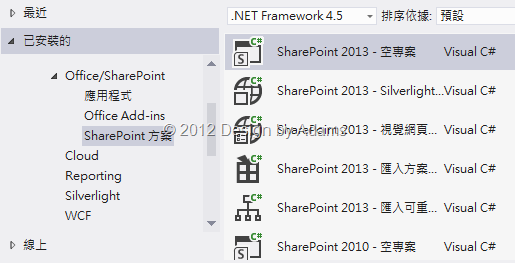
重新開啟Visual Studio 2012 可以看到Office和SharePoint開發的專案範本都被整合在一個Office/SharePoint分類中,並且多很多額外的樣板,有應用程式、Office Add-ins和SharePoint方案三種小分類。

image20

其中,Visual Studio 2012中開發SharePoint 2013和Visual Studio 2010開發SharePoint 2010最大的不同在於SharePoint 2013大部分是以APP的方式開發,所以假設要開發App的話,則建立:應用程式/ShaePoint 2013 相關應用程式專案。
image34

ShaePoint 2013 相關應用程式專案好處就是可以在您的個人NB或是PC環境上直接開發和建置,都不會有問題,就算你的電腦沒有安裝SharePoint 2013也可以!這點對大部分的SPS2013 APP開發者來說無異是一大福音,因為畢竟以往考量最麻煩的還是開發環境的建置!

image28

但是,假設要開發的專案類型為SharePoint方案,如下圖所示:

image46

那麼很抱歉,VS2012不客氣的就丟出一個錯誤視窗,說明:此系統未安裝 SharePoint Foundation 2013 或 SharePoint Server 2013 的必要版本。若要開發 SharePoint 方案或瀏覽伺服器總管中的 SharePoint 連線,本機系統上必須安裝 SharePoint。請確定 SharePoint 專案所參考的本機伺服器已存在。

image51

所以要開發SharePoint方案這種專案樣板的大大們,還是要在你的開發環境上安裝 SharePoint Foundation 2013 或 SharePoint Server 2013 阿,但至少ShaePoint 2013 App的開發方式會是此版本的趨勢,所以開發環境的建制就看各位大大的考量啦!

2012年11月16日 星期五

SharePoint 2013 Project Templates for Visual Studio 2012-1(在Visual Studio 2012中消失的SharePoint 2013專案範本)

要開發SharePoint 2013 ,光只裝Visual Studio 2012還是不夠的,因為如果只是單純的安裝Visual Studio 2012的話,只會有以下幾個SharePoint 2013基本的專案範本可以使用,跟前一個版本Visual Studio 2010差太多了!

image

此時則可以先至以下網址:http://msdn.microsoft.com/en-us/office/apps/fp123627  另行下載安裝Microsoft Office Developer Tools for Visual Studio 2012

image

安裝過程會透過Web Platform Installer 4.0 安裝,目前最新版本是Microsoft Office Developer Tools for Visual Studio 2012-Preview 2,注意一下發行日期為:2012/10/19

image

準備安裝的過程中相關的必要元件很多,並不僅僅只是要安裝Microsoft Office Developer Tools for Visual Studio 2012而已,相關聯的WIF或是WF都是必要對應安裝的元件,確定沒問題直接安裝即可。

image

當然最後可以看到以下安裝完成的畫面,就代表安裝完成,可以仔細看一下安裝的內容,真的不少!

image

2012年8月11日 星期六

SharePoint 2007 Support End Date (SharePoint 2007主產品支援結束日)

雖然以目前業界使用SharePoint來看,SharePoint 2010是主流,而SharePoint 2007則是早期一些先前導入企業所使用的主要產品,事實上目前還是有不少企業還是使用SharePoint 2007,但是現在這些企業要注意了,以下是微軟技術支援針對SharePoint 2007已經公布的支援日期,主產品的技術支援只到2012/10月,也就是今年的10月。

亞當斯個人認為這跟SharePoint 2013即將上市多少有些關係,不過這不是重點啦,重點是如果還在使用SharePoint 2007的企業主們,可能要開始考量是否進行升級了!! 以下是微軟官方的資訊,給各位參考一下。

產品發行

General Availability Date

主流支援終止日期

延伸支援終止日期

Service Pack 終止日期

SharePoint Server 2007

2007/1/27

2012/10/9

2017/10/10

2009/1/13

SharePoint Server 2007 Service Pack 1

2007/12/11

不適用

不適用

2010/7/13

SharePoint Server 2007 Service Pack 2

2009/4/28

不適用

不適用

2013/1/8

SharePoint Server 2007 Service Pack 3

2011/10/25

檢閱附註

檢閱附註


詳細訊息請參考以下Microsoft技術支援:http://support.microsoft.com/lifecycle/search/default.aspx?sort=PN&alpha=SharePoint+Server+2007&Filter=FilterNO

2012年4月19日 星期四

How to Add "Add property restrictions" Column in SharePoint Advanced Search (SharePoint 2010 進階搜尋如何新增查詢欄位)

在SharePoint 的搜尋網站中有一個進階搜尋的功能,預設有提供一些屬性可以設定多重條件,以方便使用者進行查詢功能,如下圖所示:前八個可用欄位查詢條件是預設的,最後一個Comments是亞當斯自己加上去的。

image

所以如果想要在這個條件設定中額外加入其他的欄位時,該怎麼做?

1. 修改設定 Advanced Search Box WebPart的屬性以便改查詢欄位定義XML資料

image

2.Properties中的XML資料設定中,加入你想要額外加入的欄位名稱,例如:Comments

image

3.確定儲存之後,到Central Administration中找到Search Service Application,在Search Service Application的左邊功能項中點選Manage Content Sources進行Crawling

image

4.最後回到SharePoint網站中,設定進階條件,欄位挑選Comments後,設定一些條件後進行查詢

image

5.條件滿足就可以根據額外加入的欄位條件進行進階搜尋:

image

2012年4月16日 星期一

Custom Upload File To Document in SharePoint 2010 (客製化上傳文件至文件庫的自訂程式)

在sharepoint中上傳文件是一個必備的功能,預設的流程是:選擇檔案,確認上傳,編輯其他欄位資訊,若是取消則sharepoint放棄這項目,並將檔案刪除。

不過我發現台灣客戶一個很有趣的現象,因為上傳文件時有很多條件需要額外做判斷或是事先判斷,然後再決定是否上傳,所以幾乎都需要客製化上傳文件的那一個頁面。當然這樣的情況有好幾種解決方式,有客製化webpart、使用EventReceiver、甚至客製化編輯預設的上傳Form或是編輯Form……等等。

我想客製化webpart應該是最常見,或者是最簡單的方式吧!! (隨便問一下Google大神,一堆範例CODE阿)
以下亞當斯幫客戶寫一個簡單的範例程式,順便在這邊備存一下:

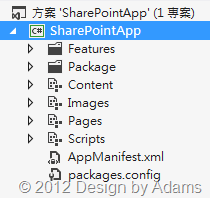
1. 建立一個WebPart專案,使用Visual WebPart,畫面如下:

image

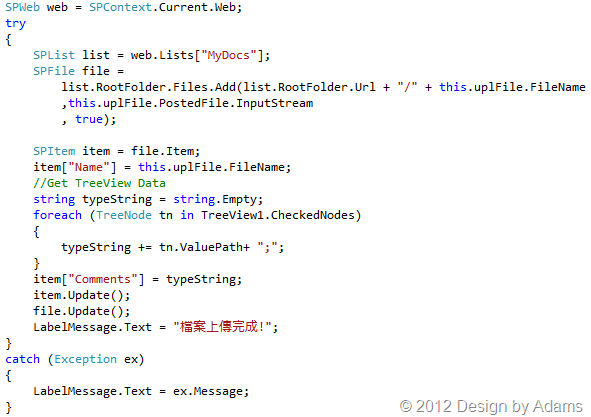
2.假設想要上傳的目標文件庫名稱為:MyDocs,並且想要把TreeView中有選取的資料,記錄到MyDocs中一個Comments欄位中,則按鈕Click事件程序程式碼如下:

image

3.部署到指定的sharepoint網站中,在網頁中加入WebPart

image

4.設訂定勾選相關資料後,執行測試!!

image

2012年4月1日 星期日

SharePoint 2010 Development Platform Stack (SharePoint 2010開發平台架構示意圖)

以下這張圖是從微軟官方MSDN轉記錄下來的,因為時常有開發的朋友問我相關的開發環境以及該注意的地方,我想以下這張示意圖可以在某種程度上說明相關的資訊,個人覺得是開發SPS的開發者一定要看的一張圖:

相關網址:http://msdn.microsoft.com/library/ee557253(office.14).aspx

image

2012年3月29日 星期四

How To Use ULS Viewer To Show SharePoint 2010 Logs (如何使用ULS Viewer針對SharePoint 2010 進行簡易偵錯)

ULS Viewer 是用來檢視SharePoint記錄檔一個很好用的小工具,各位可以在以下的網址下載:http://archive.msdn.microsoft.com/ULSViewer/Release/ProjectReleases.aspx?ReleaseId=3308

一般來說要Debug SharePoint的錯誤,不外乎就是檢視log,或是當客製化錯誤程式發生錯誤時,就直接使用VS2010進行Debug,而ULS Viewer是一個很簡單好用的Log檢視器,只需要將此小工具COPY到SERVER上,直接執行即可。

image

ULS 預設抓取的SharePoint 2010 Log所在的檔案路徑如下:C:\Program Files\Common Files\Microsoft Shared\Web Server Extensions\14\LOGS,你可以點選:File –> Open From –> ULS

image

在Setup視窗中,確認Log來源的路徑是正確的,若是SharePoint 2010 的Log路徑曾經客製化的話,那麼可以點選第二個選項,來決定正確的路徑位置,如下圖所示:

image

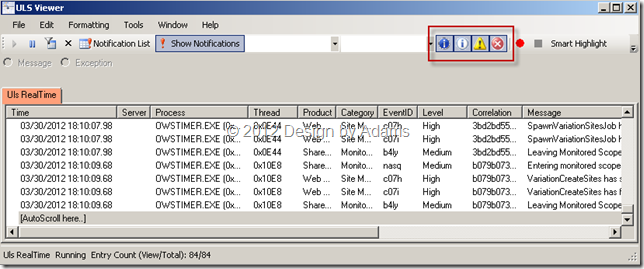
按下OK之後,就會開始進行Log的紀錄,此時在ULS RealTime中預設會記錄所有類型的Log,此時或是想要檢視不同類型的訊息,可以設定下圖的四個選項,由左至右分別為:

  • VerboseEX Message
  • Verbose Message
  • Medium Message
  • High Message

image

當然最方便的是可以自己自訂顯示欄位,或是設定條件,例如:按下ToolBar中的Filter,設定某一個要監控某一個ID的資訊LOG,Correaltion 為 85a777bf-2be2-4a95-af88-404e224d1b43的條件

image

根據條件會自動篩選符合的LOG資訊:

image

2012年3月13日 星期二

How To Use SharePoint Dispose Checker Tool (如何使用SPDisposeCheck工具檢測SharePoint 2010)

微軟官方提供的 SharePoint 程式撰寫規範,可參考如下網址之內容:

http://blogs.msdn.com/b/rogerla/archive/2008/02/12/sharepoint-2007-and-wss-3-0-dispose-patterns-by-example.aspx#SPDisposeCheckID_210

另外,在開發SharePoint API時也可以使用以下工具來檢測,撰寫的程式是否有問題,規則或用法是否有誤…等等,這個好用的工作叫做:SharePoint Dispose Checker Tool,以下是下載的網址:

SharePoint Dispose Checker Tool

http://archive.msdn.microsoft.com/SPDisposeCheck

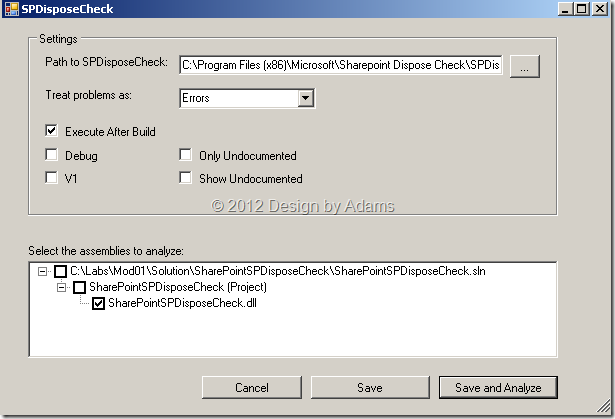
1. 當下在完成,開始執行安裝,會有一個畫面可以選擇安裝的功能,一個是當作VS2010的增益集工具,另一個是自動在專案建置後,順便執行程式碼檢核,如下圖所示:

image

2. 安裝完成之後,開啟VS2010可以看到已經安裝完成的工具:SPDisposeCheck,先設定VS2010中的SPDisposeCheck

image

3. 新增一個SharePoint WebPart專案,在WebPart中撰寫叫用Server API 物件程式

image

4. 使用SharePoint.dll呼叫Server API 物件來進行程式碼檢測,以下我們來檢測兩段簡易的SPWeb物件程式碼,首先第一段是正確的寫法:

image

5. 開啟VS2010中的SPDisposeCheck,設定相關選項後,按下Save and Analyze:

image

因為這段程式碼是遵守規範的,所以並沒有錯誤訊息警示:

image

6. 第二段程式是不正確的寫法,當建置後SPDisposeCheck會檢測到這段程式不符合程式撰寫規範,因此會出現提示的警示訊息,如下圖所示:

image

當SPDisposeCheck進行程式碼檢測時,會發現以下錯誤訊息:

SPDisposeCheckID_645: Dispose should not be called on this object.
Initial Assignment: site := Microsoft.SharePoint.SPContext.get_Current().{Microsoft.SharePoint.SPContext}get_Site() For more information, visit
http://blogs.msdn.com/rogerla/archive/2008/02/12/sharepoint-2007-and-wss-3-0-dispose-patterns-by-example.aspx#SPDisposeCheckID_645        0    1    SharePointSPDisposeCheck

image

因此,若是開發SharePoint 應用程式,亞當斯建議可以使用這個不錯用的程式碼檢測小工具來偵測您的寫法是否有遵守微軟建議的開發規範,以避免不必要的錯誤發生。

2011年11月13日 星期日

Enabled SharePoint 2010 Session(啟用SharePoint 2010的Session機制)

預設SharePoint 2010 並沒有啟用Session機制,因此如果客製化的User Control或是ApplicationPage有用到Session的話,那麼必須要啟用SharePoint 2010中的Session機制,而啟用的方式就是修改web.config中的相關設定。

總共有兩個設定要修改:

  1. 將<system.web>下的pages項目中的enableSessionState屬性設定為:trueimage
  2. 修改<system.webServer>下modules項目,將<remove name="Session" />註解掉即可image

2011年11月1日 星期二

SharePoint 2010 Common site collection templates (SharePoint 2010 網站樣板代號對應表)

SharePoint 2010上面有很多的網站範本,讓管理者可以建置各種不同類型的網站,如果要透過程式碼API或是Windows PowerShell 來安装或建立網站的話,就必須知道網站的範本代號為何。

以下亞當斯整理一下來自MSDN上的Common site collection templates,網站樣板代碼表如下:

Parameter value

Description

描述

GLOBAL#0

Global template

全域範本

STS#0

Team Site

工作組網站

STS#1

Blank Site

空白網站

STS#2

Document Workspace

文件工作區

MPS#0

Basic Meeting Workspace

基本會議工作區

MPS#1

Blank Meeting Workspace

空白會議工作區

MPS#2

Decision Meeting Workspace

決議會議工作區

MPS#3

Social Meeting Workspace

社交會議工作區

MPS#4

Multipage Meeting Workspace

多頁會議工作區

CENTRALADMIN#0

Central Admin Site

管理中心網站

WIKI#0

Wiki Site

Wiki 網站

BLOG#0

Blog

部落格

SGS#0

Group Work Site

群組工作網站

TENANTADMIN#0

Tenant Admin Site

租戶管理網站

ACCSRV#0

Access Services Site

Access Services 網站

ACCSRV#1

Assets Web Database

資產 Web 資料庫

ACCSRV#3

Charitable Contributions Web Database

慈善捐款 Web 資料庫

ACCSRV#4

Contacts Web Database

連絡人 Web 資料庫

ACCSRV#6

Issues Web Database

問題 Web 資料庫

ACCSRV#5

Projects Web Database

專案 Web 資料庫

BDR#0

Document Center

文件中心

OFFILE#0

(obsolete) Records Center

(已過時)記錄中心

OFFILE#1

Records Center

記錄中心

OSRV#0

Shared Services Administration Site

共用服務管理網站

PPSMASite#0

PerformancePoint

PerformancePoint

BICenterSite#0

Business Intelligence Center

商業智慧中心

PWA#0

Project Web App Site

Project Web App 網站

PWS#0

Microsoft Project Site

Microsoft Project 網站

SPS#0

SharePoint Portal Server Site

SharePoint Portal Server 網站

SPSPERS#0

SharePoint Portal Server Personal Space

SharePoint Portal Server 個人網站

SPSMSITE#0

Personalization Site

個人化網站

SPSTOC#0

Contents area Template

內容區域範本

SPSTOPIC#0

Topic area template

主題區域範本

SPSNEWS#0

News Site

新聞網站

CMSPUBLISHING#0

Publishing Site

發佈網站

BLANKINTERNET#0

Publishing Site

發佈網站

BLANKINTERNET#1

Press Releases Site

新聞發佈網站

BLANKINTERNET#2

Publishing Site with Workflow

使用工作流發佈網站

SPSNHOME#0

News Site

新聞網站

SPSSITES#0

Site Directory

網站目錄

SPSCOMMU#0

Community area template

社區區域範本

SPSREPORTCENTER#0

Report Center

報告中心

SPSPORTAL#0

Collaboration Portal

協作門戶

SRCHCEN#0

Enterprise Search Center

企業級搜索中心

PROFILES#0

Profiles

設定檔

BLANKINTERNETCONT

Publishing Portal

發佈門戶

SPSMSITEHOST#0

My Site Host

“我的網站” HOST

ENTERWIKI#0

Enterprise Wiki

企業 Wiki

SRCHCENTERLITE#0

Basic Search Center

基本搜索中心

SRCHCENTERLITE#1

Basic Search Center

基本搜索中心

SRCHCENTERFAST#0

FAST Search Center

快速搜索中心

visprus#0

Visio Process Repository

Visio 流程儲存庫


以下是Windows PowerShell 透過網站範本建立網站的指令:

Set-ExecutionPolicy unrestricted -Force # answer Y
Add-PSSnapin Microsoft.SharePoint.Powershell
$SiteCollectionName = "Welcome to My Publishing Site"
$SiteCollectionURL = "http://www.contoso.com/sps/"
$ContentDatabase  = "SP2010_ContentDB_Frontend"
$SiteCollectionTemplate = "BLANKINTERNET#1"
$SiteCollectionLanguage = 1033
$SiteCollectionDescription = "Publishing site"
$OwnerAlias = "DOMAIN\admin"
$OwnerEmail = "admin@contoso.com"
$SecondaryOwnerAlias = "DOMAIN\admin2"
$SecondaryEmail = "admin2@contoso.com"
# Create a new Sharepoint Site Collection
New-SPSite -Name $SiteCollectionName -URL $SiteCollectionURL -ContentDatabase $ContentDatabase Template $SiteCollectionTemplate -Language $SiteCollectionLanguage -Description $SiteCollectionDescription -OwnerAlias $OwnerAlias -OwnerEmail $OwnerEmail -SecondaryOwnerAlias $SecondaryOwnerAlias -SecondaryEmail $SecondaryEmail

2011年8月24日 星期三

SharePoint 2010 Custom Action Locations and Group IDs - Page

SharePoint 2010 的Locations and GroupIDs總共分為四大類:

以下是Page對應表格資料:

Location

Custom Action Group IDs

Default Custom Action IDs

Group Description

Microsoft.SharePoint.ContentTypeSettings

Fields

· AddField

· ReorderFields

Columns section on site collection Content Type page.

Microsoft.SharePoint.ContentTypeSettings

General

· ChangeNameDescription

· ChangeOptionalSettings

· ChangeWorkflowSettings

· RemoveContentType

Settings section on site collection Content Type page.

Microsoft.SharePoint.ContentTypeTemplateSettings

Fields

· AddField

· ReorderFields

Columns section on List Content Type page.

Microsoft.SharePoint.ContentTypeTemplateSettings

General

· ChangeNameDescriptionGroup

· ChangeOptionalSettings

· ChangeWorkflowSettings

· RemoveContentType

Settings section on List Content Type page.

Microsoft.SharePoint.Create

WebPages

Not applicable

Web Pages section on Create page.

Microsoft.SharePoint.GroupsPage

NewMenu

Not applicable

New menu on site collection People and Groups page.

Microsoft.SharePoint.GroupsPage

SettingsMenu

Not applicable

Settings menu on site collection People and Groups page.

Microsoft.SharePoint.ListEdit

Communications

Not applicable

Communications section on Customize page for list or document library.

Microsoft.SharePoint.ListEdit

GeneralSettings

Not applicable

General Settings section on Customize page for list.

Microsoft.SharePoint.ListEdit

Permissions

Not applicable

Permissions and Management section on Customize page for list or document library.

Microsoft.SharePoint.ListEdit.DocumentLibrary

GeneralSettings

Not applicable

General Settings section on Customize page for document library.

Microsoft.SharePoint.PeoplePage

ActionsMenu

Not applicable

Actions menu on site collection People and Groups page.

Microsoft.SharePoint.PeoplePage

NewMenu

Not applicable

New menu on site collection People and Groups page.

Microsoft.SharePoint.PeoplePage

SettingsMenu

Not applicable

Settings menu on site collection People and Groups page.

Microsoft.SharePoint.SiteSettings

Customization

· ProjectSettings

· NavOptions

· Theme

· TopNav

· QuickLaunch

· SaveAsTemplate

· ReGhost

Look and Feel section on Site Settings page.

Microsoft.SharePoint.SiteSettings

Galleries

· MasterPageCatalog

· ManageCType

· ManageField

· SiteTemplates

· ListTemplates

· WebParts

· Workflows

Galleries section on Site Settings page.

Microsoft.SharePoint.SiteSettings

SiteAdministration

· RegionalSettings

· LibrariesAndLists

· WebUsage

· UserAlerts

· RSS

· SrchVis

· ManageSubWebs

· ManageSiteFeatures

· DeleteWeb

Site Administration section on Site Settings page.

Microsoft.SharePoint.SiteSettings

SiteCollectionAdmin

· DeletedItems

· SiteCollectionUsage

· Storage

· ManageSiteCollectionFeatures

· Hierarchy

· Portal

Site Collection Administration section on Site Settings page.

Microsoft.SharePoint.SiteSettings

UsersAndPermissions

· PeopleAndGroups

· SiteCollectionAdministrators

· User


以上資料來自微軟MSDN : http://msdn.microsoft.com/en-us/library/bb802730.aspx

SharePoint 2010 Custom Action Locations and Group IDs - Menu

每次在設定Ribbon的時候,或是其他Elements功能都常常需要設定到Location和以及相對應的Group,每一次也要查一下MSDN,雖然查的到,但亞當斯還是覺得好麻煩,所以就把微軟官方的SharePoint 2010 Custom Action Locations and IDs在這邊也記錄備查一下。

SharePoint 2010 的Locations and GroupIDs總共分為四大類:

  • Menu Custom Action Locations and Group IDs
  • Page Custom Action Locations and Group IDs
  • Central Administration Custom Action Locations and Group IDs
  • Server Ribbon Custom Action Locations and Group IDs

以下是Menu對應表格資料:

Menu Custom Action Locations and Group IDs

Location

Custom Action Group IDs

Default Custom Action IDs

Group Description

DisplayFormToolbar

Not applicable

ExportEventToolbarButton (calendars)

ExportContactToolbarButton (contacts)

Location corresponds to the display form toolbar of lists.

EditControlBlock

Not applicable

Not applicable

Location corresponds to the per-item edit control block (ECB) menu.

EditFormToolbar

Not applicable

Not applicable

Location corresponds to the edit form toolbar of lists.

NewFormToolbar

Not applicable

Not applicable

Location corresponds to the new form toolbar of lists.

ViewToolbar

Not applicable

Not applicable

Location corresponds to the toolbar in list views.

Microsoft.SharePoint.StandardMenu

ActionsMenu

Not applicable

Actions menu in list and document library views.

Microsoft.SharePoint.StandardMenu

ActionsMenuForSurvey

Not applicable

Site Actions menu for surveys.

Microsoft.SharePoint.StandardMenu

SettingsMenuForSurvey

Not applicable

Site Settings links for surveys.

Microsoft.SharePoint.StandardMenu

SiteActions

Not applicable

Site Actions menu.

2011年8月18日 星期四

How to coding to creating a web part page in SharePoint 2010(如何在某個List(如Site Pages/Site Assets)裡加入一個web part page)

如果想要動態透過SharePoint Server API將Web Part Page動態加入指定的清單中,如:Site Pages或Site Assets中,該如何來實作,以下亞當斯使用Console Application來示範,先建立一個Console Application

1. 加入Microsoft.SharePoint.dll以及System.Web.dll兩個主要的組件

clip_image001

2. 因為當SharePoint2010在建立新的網頁組件頁面(WebPartPage)時,有很多的網頁範本可以選擇,所以假設想要動態建立新的WebPartPage,則必須先指定某個既定的網頁範本,例如最基本的:spstd1.aspx,這些網頁組件頁面範本是存放在以下路徑:

C:\Program Files\Common Files\Microsoft Shared\Web Server Extensions\14\TEMPLATE\1028\STS\DOCTEMP\SMARTPGS

clip_image002

3. 在Main.cs中加入以下程式碼,透過SPUtility.GetGenericSetupPath先取出範本存放的路徑,接著設定網頁範本名稱以及想要放置的資料夾或清單名稱,最後透過SPFile物件,將自訂的網頁組件頁面新增到SitePages清單中:

try

{

using (SPWeb web = new SPSite("http://sharepoint").OpenWeb())

{

//Create Page in SitePages List (If English Version Please use 1033)

string hive = SPUtility.GetGenericSetupPath("TEMPLATE\\1028\\STS\\DOCTEMP\\SMARTPGS\\");

FileStream stream =

new FileStream(Path.Combine(hive, "spstd1.aspx"), FileMode.Open);

SPFolder libraryFolder = web.GetFolder("SitePages");

SPFileCollection files = libraryFolder.Files;

SPFile file = files.Add("MyPage.aspx", stream);

Console.WriteLine("Create Custom Page OK");

}

}

catch (Exception ex)

{

Console.WriteLine(ex.Message);

}

Console.Read();

4. 建置專案,並結執行測試,開啟http://sharepoint/SitePages/Forms/AllPages.aspx,可以看到MyPage.aspx已經被API動態新增到SitePages中

clip_image003

5. 點擊MyPage.aspx,並進入編輯模式,可以在MyPage中新增網頁組件

clip_image005

2011年8月17日 星期三

How to Programmatically Add List or WebParts to SharePoint 2010 WebPartPage

想要在既有的網頁組件頁面中透過API動態加入既有的清單List或是網頁組件WebPart,該如何設計呢?

以下亞當斯帶各位來設計開發:

1. 假設建立一個將加入至WebPartPage的清單:MyProject (此清單是Project Task),如下圖所示:

clip_image002

2. 接著建立一個Console Application,加入Microsoft.SharePoint.dll以及System.Web.dll兩個主要的組件

3. 在Main.cs中加入以下程式碼,將List加入名為MyPage.aspx的網頁組件頁面中,MyPage.aspx的建立方式可以自行加入單一網頁組件的頁面,或是請參考以下文章步驟:How to coding to creating a web part page in SharePoint 2010

image

4. 建置專案,並執行測試,將會發現MyProject已經被動態新增至MyPage.aspx的網頁組件頁面中:

clip_image004